
Step 1: Gather What You Need
Start by visiting the official site to grab the installer that matches your machine, whether Windows or Mac. Think of this like selecting the ripest produce from the market, choosing the version that fits your setup perfectly. Once the file arrives in your downloads folder, you are ready to move forward with confidence.
Step 2: Run the Installer on Windows
Double-click the downloaded file to begin the process. A clean window will appear asking for permission, much like welcoming a guest into your kitchen. Click through the prompts to place Frameleaf in your programs folder, watching as it unpacks with a soft animation that feels inviting and natural. The whole action takes just a few moments on most machines.
Step 3: Set Up on Mac
For Mac users, open the disk image and drag the app icon straight into your applications folder. It unfolds smoothly, similar to arranging fresh herbs on the counter. After copying completes, eject the image and launch from the folder or dock to see the first screen greet you warmly.
Step 4: Initial Configuration
Upon first launch, Frameleaf asks for basic preferences such as where to store your projects and any quick color choices that suit your space. Enter details carefully, with inline checks confirming each entry looks right before moving ahead. This stage sets the foundation so everything runs just as you like it from the start.
Step 5: Connect Any Extras
If you have other tools at home, link them now through the settings panel. The process uses simple selections that expand with a gentle click, adding layers of usefulness without complication. Verify each connection succeeds with a small icon that signals success.
Step 6: Launch and Explore
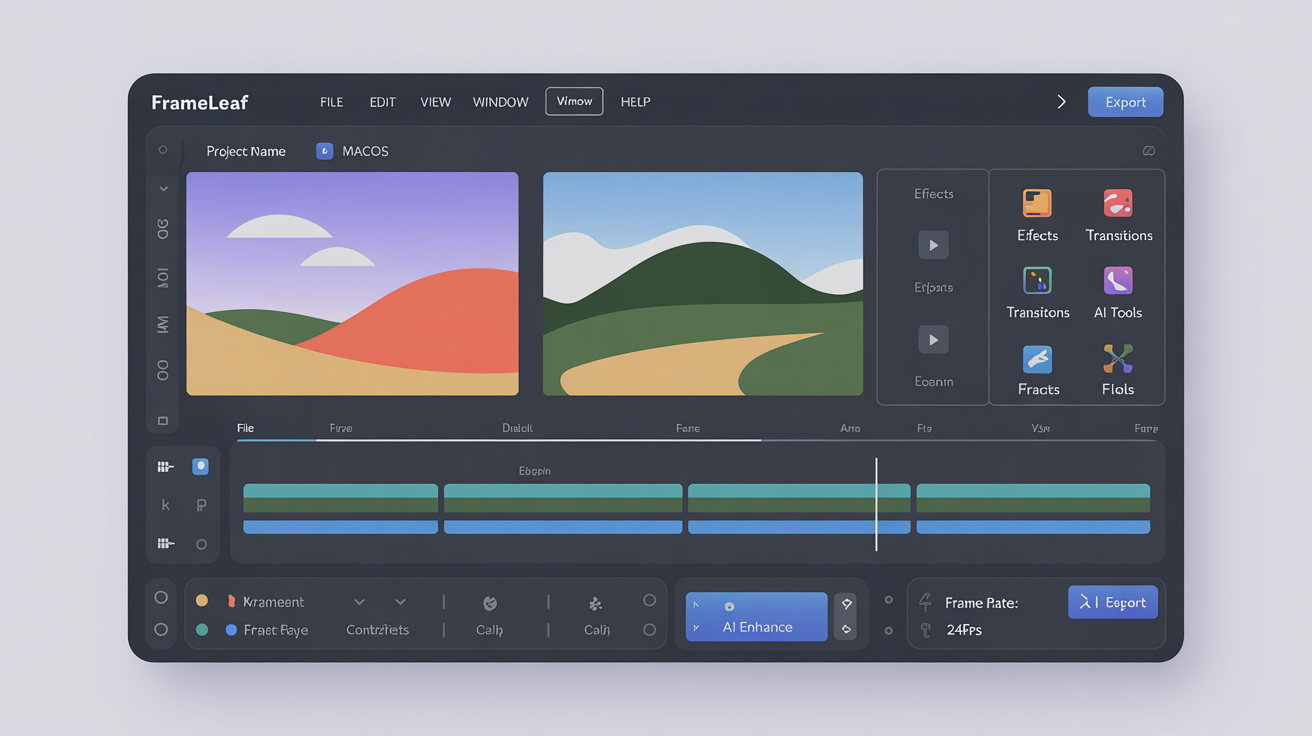
Click the main button to open Frameleaf fully. The interface appears with soft shadows and clear sections ready for your ideas. Take a moment to try a sample project, noticing how responsive the controls feel in your hands. If anything needs a tweak, return to settings for quick adjustments.
Step 7: Keep It Fresh
Check back now and then for updates that arrive like new season produce, keeping your experience bright and current. Restart the app after any change to enjoy the latest touches. With these steps complete, Frameleaf sits ready on your desktop for daily use.